CapCut Free Basic To Advance Video Editing Course |Capcut Video Editing Course | PART :02
In this video, we will be discussing the CapCut Free Basic to Advance Video Editing Course. This course will teach you everything you need to be a successful video editor.If you're interested in learning how to edit videos, be sure to watch this video! In this part, we will be discussing the CapCut Free Basic to Advance Video Editing Course. This course will teach you everything you need to be a successful video editor. From cutting and trimming to color correction, this course will teach you everything you need to know!
এই রকম নতুন নতুন ভিডিও পেতে আমাদের চ্যানেলটা সাবস্ক্রাইব করে সাথেই থাকবেন ধন্যবাদ🥰
VOICE: MAHMUD HASAN
UPLOAD : MAHMUD HASAN
Follow Mahmud Hasan
Facebook : https://www.facebook.com/mahmudhasan.078
YouTube : https://www.youtube.com/@ytmahmudhasan
_________________________________________________________________________
Follow on :
Facebook : https://www.facebook.com/hasantechnologybd
YouTube: https://www.youtube.com/@hasantechnologybd
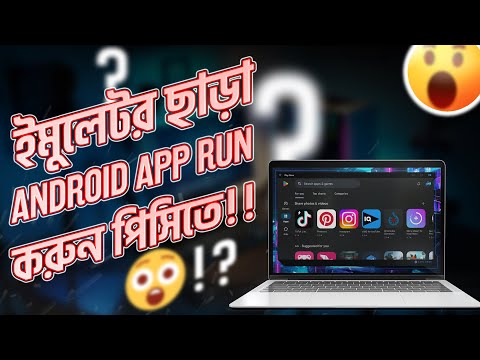
How TO Install Play Store on PC | Play Store for windows | Play Android Apps Without Emulator|
In this video, we're going to show you how to download and install Google Play Store on your PC. This is a guide for people who want to be able to download and install apps on their computer without using a smartphone or tablet. If you're looking for a step-by-step guide on how to download and install the Google Play Store on your PC, then this is the video for you! After watching this video, you'll be able to download and install the Google Play Store on your PC with ease!
How to blur photos background like dslr | Dslr blur photo editing | Bulr your photos in one click🔥!
CapCut PC Free Basic To Advance Video Editing Course | Video Editing Tutorial | Capcut PC Version |
you want to be a expert capcut video editor . Please continue this
course .
How to Download CapCut in laptop/Computer|CapCut For PC| CapCut PC version| Free Video Editor For PC
How to Download CapCut in laptop/Computer | CapCut For PC | CapCut PC version| Free Video Editor For PC |
EDIT : MAHMUD HASAN
VOICE: MAHMUD HASAN
UPLOAD : MAHMUD HASAN
Follow Mahmud Hasan
Facebook : https://www.facebook.com/mahmudhasan.078
YouTube : https://www.youtube.com/@ytmahmudhasan
_________________________________________________________________________
Follow on :
Facebook : https://www.facebook.com/hasantechnologybd
How to make Eid Mubarak Poster Design || Eidul-Adha Poster Design || Free Plp | Eid Mubarak Poster |
ফাইলগুলো ডাওনলোড করতে পুরো ভিডিওটা দেখুন পাসওয়ার্ড পাবেন । পাসওয়ার্ড দিন ডাওনলোড করুন ধন্যবাদ । এই রকম নতুন ভিডিও পেতে আমাদের চ্যানেলটা সাবস্ক্রাইব করে রাখুন ।❤❤
পাসওয়ার্ড প্রয়োজন
How to add thumbnail on facebook profile video | প্রফাইল ভিডিওতে থাম্বনেই্ল😱 | Fb Custom thumbnail |
Ridmik Keyboard 3 Hidden Tips and Tricks | টাইপিং স্পীড হবে দিগুন | How to type bangla যুক্তবর্ণ |
Ridmik Keyboard is a Bangla typing software that makes typing in Bengali easy and provides an advanced solution for typing Bengali on a computer. It has a simple user interface that makes the Bengali typing process easy for users.
By using Ridmik Keyboard, you can easily type in Bengali, and Bengali characters can be typed in their entirety. In addition, the specific features available in Ridmik Keyboard make the typing process even easier for users. It is easy to use and makes learning Bengali typing fun.
In summary, Ridmik Keyboard is a Bangla typing software with a simple user interface that makes typing in Bengali easy and fun.
___________________________________________________________________________
EDIT : MAHMUD HASAN
VOICE : MAHMUD HASAN
UPLOAD : MAHMUD HASAN
Follow Mahmud Hasan
Facebook : https://www.facebook.com/mahmudhasan.078
YouTube :https://www.youtube.com/@ytmahmudhasan
Website : https://asmahmudhasan.blogspot.com/
___________________________________________________________________________
Follow on :
Facebook : https://www.facebook.com/hasantechnologybd
Website : https://hasantechnologyofficial.blogspot.com
______________________________________________________________________
To install software on your computer, follow these general steps:
1. Download the software installation file from the internet or insert the installation CD or DVD into your computer's optical drive.
2. Run the installation file by double-clicking on it.
3. Follow the instructions in the installation wizard. This may involve accepting a license agreement, choosing an installation location, and selecting any additional features you want to install.
4. Wait for the installation to complete. This may take several minutes, depending on the size of the software and the speed of your computer.
To uninstall software from your computer, follow these steps:
1. Open the Control Panel in your Windows operating system or the Applications folder on your Mac.
2. Locate the program you want to uninstall and click on it.
3. Click on the "Uninstall" button or drag the program to the Trash on a Mac.
4. Follow the prompts to complete the uninstallation process.
It's important to note that some software may have additional steps or requirements for installation or uninstallation, so it's always a good idea to consult the software's documentation or support resources if you're unsure. Additionally, some software may require administrative privileges to install or uninstall, so be sure you have the necessary permissions before proceeding.
___________________________________________________________________________
EDIT : MAHMUD HASAN
VOICE : MAHMUD HASAN
UPLOAD : MAHMUD HASAN
Follow Mahmud Hasan
Facebook : https://www.facebook.com/mahmudhasan.078
YouTube :https://www.youtube.com/@ytmahmudhasan
Website : https://asmahmudhasan.blogspot.com/
___________________________________________________________________________
মোবাইলে চলবে ফটোশপ !! How To Use Adobe Photoshop on phone | Download photoshop on phone
3. Use the tools on the left-hand side of the screen to edit your image. These tools include the Move tool, Crop tool, Lasso tool, Magic Wand tool, Clone Stamp tool, and many others.
4. Adjust the color and brightness of your image using the adjustment tools located under the "Adjustments" tab.
5. Add text to your image by selecting the "Text" tool and typing in your desired text. You can also change the font, size, color, and other text properties.
6. Use the Layers panel on the right-hand side of the screen to manage your layers. You can add, delete, and rearrange layers as needed.
7. When you're finished editing your image, click on "File" and then "Save As" to save your image in a desired format.
Photopea offers a lot of the same features as Adobe Photoshop, but it's free and doesn't require any software downloads. It's a great tool for anyone who needs to quickly edit images without investing in expensive software.
______________________________________________________________________
EDIT : MAHMUD HASAN
VOICE : MAHMUD HASAN
UPLOAD : MAHMUD HASAN
Follow Mahmud Hasan
🔥Kinemaster new tips and tricks😱|🔥Sinematic video editing |🔥Drawing intro video editing| video edit😱
in this video i discus about how to make draeing intro video by android phone.
VOICE : MAHMUD HASAN
UPLOAD : MAHMUD HASAN
Follow Mahmud Hasan
Facebook : www.facebook.com/mahmudhasan.078
YouTube : www.youtue.com/ @ytmahmudhasan
Website : https://asmahmudhasan.blogspot.com/
___________________________________________________________________________
Follow on :
Facebook : www.facebook.com/hasantechnologybd
Website :https://hasantechnologyofficial.blogspot.com
______________________________________________________________________
How To Add i Card In Video | Hasan Technology | Add i button on video |
An "i card" or interactive card is a feature on YouTube that allows creators to add interactive elements to their videos. These can include links to other videos or playlists, polls, and even merchandise or crowdfunding links.- Go to your Video Manager and select the video you want to add an i card to.
- Click on the "Cards" button in the top navigation bar.
- Click on the "Add Card" button and select the type of card you want to add (video or playlist, channel, donation, link, poll, or merchandise).
- Fill in the necessary information for the card, including the title, URL, and image (if applicable).
- Choose the time in the video where you want the card to appear, and adjust the duration if necessary.
- Click "Create Card" to add it to your video.
To add an i card to your YouTube video, follow these steps:
Note that viewers can only see i cards on desktop and mobile devices, and they must be watching the video on the YouTube website (not embedded on another website or in the YouTube app).
I hope this helps! Let me know if you have any other questions.
______________________________________________________________________
EDIT : MAHMUD HASAN
VOICE : MAHMUD HASAN
UPLOAD : MAHMUD HASAN
Follow Mahmud Hasan
Facebook : https://www.facebook.com/mahmudhasan.078
YouTube : https://www.youtube.com/@ytmahmudhasan/about
Website : https://asmahmudhasan.blogspot.com/
______________________________________________________________________
Follow on :
Facebook : www.facebook.com/hasantechnologybd
Website :https://hasantechnologyofficial.blogspot.com
______________________________________________________________________
Eid Mubarak Poster Design in Mobile || Hasan Technology
EDIT : MAHMUD HASANVOICE : MAHMUD HASAN
UPLOAD : MAHMUD HASAN
Follow Mahmud Hasan
Facebook : https://www.facebook.com/mahmudhasan.078
YouTube : https://www.youtue.com/@ytmahmudhasan
Website : https://asmahmudhasan.blogspot.com/
______________________________________________________________________
Follow on :
Facebook : www.facebook.com/hasantechnologybd
This video I will show how to make or add subscribe and bell button on your YouTube video in Android mobile Bangla.
- | Hasan Technology